What this page helps you do
Use this workflow when you need a tenant to create their RentMouse portal account. The invitation email gives them a direct starting point so they can sign in, pay rent online, review documents, and submit maintenance requests.
Before you begin
- You need the tenant's full name and email address.
- You must be signed in to the landlord dashboard.
- The tenant should use an email address they can access right away.
Step 1: Open the tenant invitation form
Path: Dashboard > Tenants > Invite
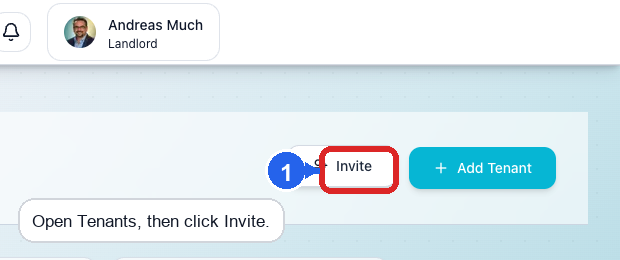
From the landlord dashboard, open Tenants and click Invite in the top-right corner of the page.
Step 2: Enter the tenant's details and send the invitation
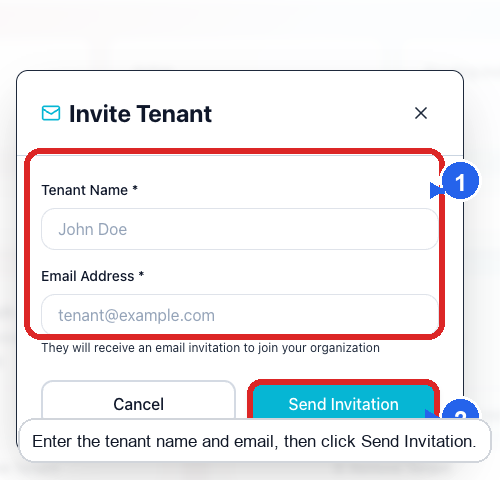
In the Invite Tenant window, enter the tenant's name and email address. Then click Send Invitation.
The screen explains that the tenant will receive an email invitation to join your organization. If the email address is wrong, the tenant will not receive the message, so it is worth double-checking before you send it.
What happens next
After you send the invitation, the tenant appears on the Tenants page as a pending invite until they create their account. The tenant can then use the email link to open the portal and finish setup.
If they do not receive the message, you can still give them your direct portal URL from the dashboard. See How to share your tenant portal sign-in link.
If something is not working
- If the tenant says the email never arrived, confirm you entered the right email address and ask them to check spam or promotions folders.
- If you do not see the Invite button, make sure you are on the Tenants page and not inside a different section such as Properties or Leases.
- If the tenant already exists in RentMouse, avoid creating a second record. Open their existing record first and confirm whether they have already been invited.
Tips
- Tell the tenant to watch for an email from RentMouse before you send the invite.
- Use the tenant's real long-term email address, not a temporary one, because it becomes part of their sign-in flow.
- If you are onboarding multiple roommates, invite each person separately so each tenant gets their own login.