What this page helps you do
The landlord dashboard is the first screen after you sign in. It gives you one place to jump into the tasks landlords use most often: adding properties, checking portfolio health, opening tenant records, and sharing the tenant portal.
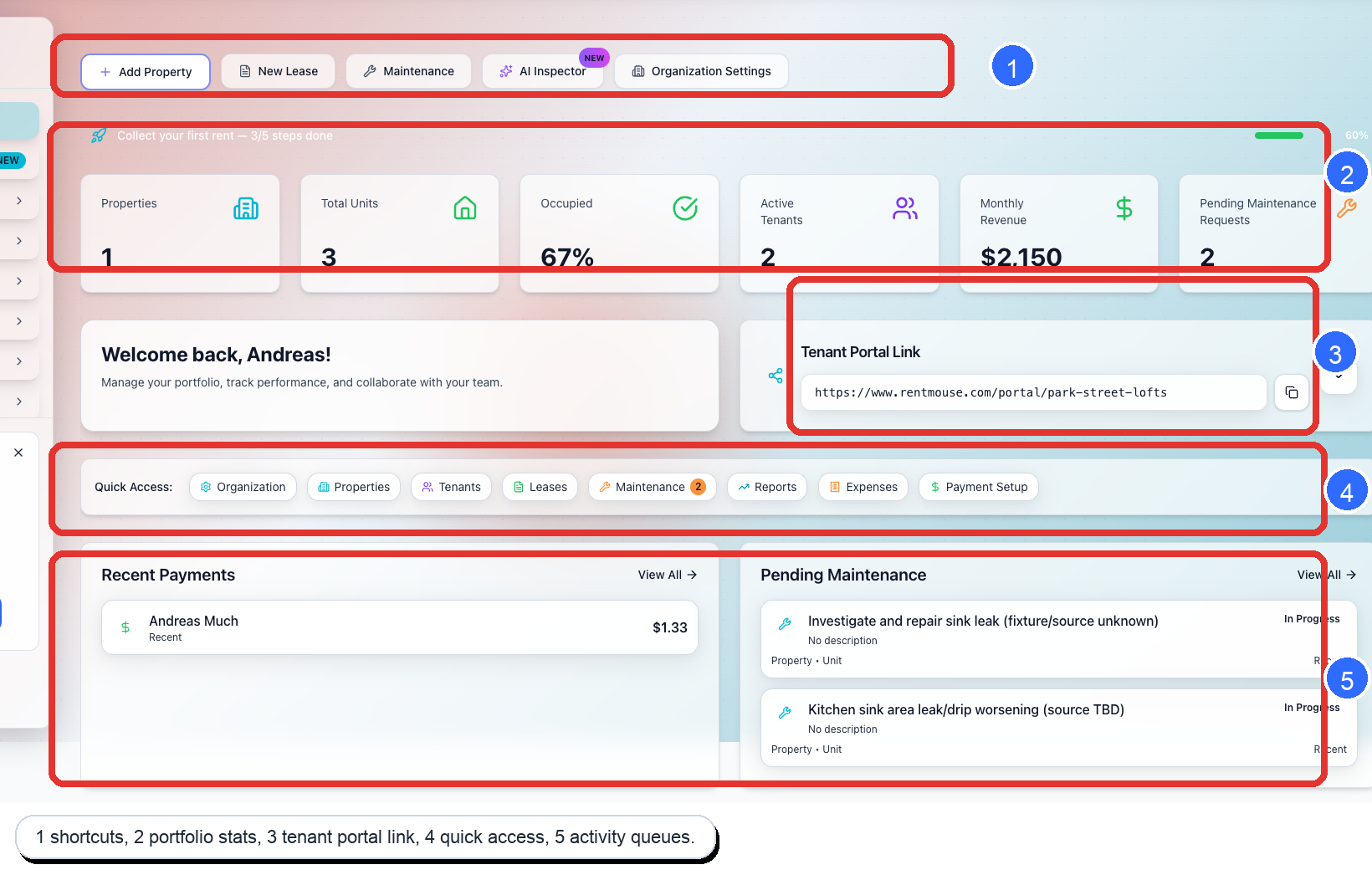
1. Use the top shortcuts for common setup tasks
The buttons at the top of the dashboard are the fastest way to start common jobs. In the current interface, the main shortcuts are Add Property, New Lease, Maintenance, AI Inspector, and Organization Settings.
If you are setting up a new account, start with Add Property. If you already have tenants in place, the next stop is usually Tenants from the left menu.
2. Check your portfolio stats row
The stat cards show your current count of Properties, Total Units, Occupied, Active Tenants, Monthly Revenue, and Pending Maintenance Requests. This is the fastest way to see whether something needs attention before you open a detailed page.
3. Find your Tenant Portal Link card
The Tenant Portal Link card sits directly on the dashboard. This is where you copy your portal URL, preview what tenants will see, and open the email sharing option.
If your goal is to onboard a tenant, this card is one of the most useful spots on the dashboard. For the full walkthrough, see How to share your tenant portal sign-in link.
4. Use Quick Access for page shortcuts
The Quick Access row gives you one-click links to the pages landlords open most often, including Organization, Properties, Tenants, Leases, Maintenance, Reports, Expenses, and Payment Setup.
If you are trying to invite a tenant, go to Dashboard > Tenants. If you are preparing rent collection, open Dashboard > Payment Setup.
5. Review the activity queues at the bottom
The lower section highlights work that usually needs follow-up. In the current layout, the two main queues are Recent Payments and Pending Maintenance.
Use these sections to confirm payments are arriving and to catch open repair issues before a tenant has to follow up with you.
If something looks different
- If you do not see the same shortcuts, your account permissions or enabled features may be different.
- If the Tenant Portal Link card is collapsed, click the arrow on the right side of the card to expand it.
- If a stat looks wrong, open the related page from the left navigation and confirm the underlying record is active.
What to do next
Most new landlords move from the dashboard into one of three tasks: adding properties and units, inviting a tenant to the portal, or sharing the tenant portal sign-in link.